


Skip to content
  • Contact
  • Support
  • Account logins
  • Pay my bill
    • Pay my electric bill
    • Pay my internet bill
HES
  • Electric
    • Electric services
    • Outage map
    • Start
    • Stop
    • Transfer
    • Energy efficiency
  • Internet
    • For my home
    • For my business
  • Phone
    • For my home
    • For my business
  • Programs
  • About us
  • Sign up
    • Electric
    • Internet
HES
  • Electric
    • Electric services
    • Outage map
    • Start
    • Stop
    • Transfer
    • Energy efficiency
  • Internet
    • For my home
    • For my business
  • Phone
    • For my home
    • For my business
  • Programs
  • About us
  • Electric sign up
  • Internet sign up
  • Contact
  • Support
  • Account login
  • Pay my electric bill
  • Pay my internet bill
  • Your Holiday-Ready Connected Home: A November Guide for Hosting, Shopping & Streaming

    Thumbnail Placeholder
    your holiday ready connected home: a November guide for hosting, shopping, & streaming.

    The holidays are almost here. For many families, that means a full house, a full table, and a whole lot of devices.

    This fall, our blog series has helped you get your connected home ready for the school year. We covered back-to-school tech, healthy screen time, choosing the right internet speed, and last month, keeping your family safe online during Cybersecurity Awareness Month.

    Now it’s time to put all of that to work for the busiest season of the year. Between visiting relatives, Thanksgiving football, holiday movie marathons, and online shopping deals, your home network is about to get a workout. Here’s how to make sure it’s ready.

    Step 1: Fix Wi-Fi Dead Zones Before Company Arrives

    The guest room in the back, the basement where the kids play video games, the back porch where everyone gathers for the game. If Wi-Fi struggles in any of these spots now, it’ll struggle more with a house full of people.

    • Find the right spot for your router. Routers work best in a central, open location, up off the floor. Avoid tucking it inside a cabinet, behind the TV, or near large appliances.
    • Walk the house and test. Run a quick speed test on your phone in each room. Note where the signal drops off.
    • Consider a mesh Wi-Fi system. If you have a larger home or multiple floors, mesh systems use several small units to blanket the whole house in strong, even coverage.
    • Plug in what you can. Smart TVs, gaming consoles, and desktop computers run best on a wired Ethernet connection. That also frees up Wi-Fi for phones and tablets.
    • Restart your router. A simple restart a few days before guests arrive can clear out glitches and give your network a fresh start.

    Remember, your EnergyNet fiber connection brings plenty of speed to your home. Good Wi-Fi coverage makes sure that speed reaches every room.

    Step 2: Make Guests Feel at Home (Without Sharing Your Main Password)

    “What’s the Wi-Fi password?” might be the most-asked question at holiday gatherings. Here’s how to answer it easily and safely.

    • Turn on your guest network. We recommended this in October, and the holidays are the perfect time to use it. Guests get fast internet while staying separate from the computers and devices your family uses for banking and schoolwork.
    • Pick a simple but secure guest password. Something easy to type, like a few holiday-themed words, works great.
    • Share it the easy way. Many router apps can create a QR code that guests scan to connect instantly. Print it and set it on the counter or in the guest room.
    • Change it after the holidays. Once everyone heads home, update the guest password so old devices don’t stay connected.

    Step 3: Get Ready for Football, Movie Nights & Game Downloads

    Thanksgiving Day can be one of the busiest days of the year for a home network. Picture it: football streaming in the living room, a parade on the kitchen tablet, cousins video chatting with relatives out of town, and teenagers gaming online in the basement.

    In September, we explained how to figure out how much bandwidth your household needs. During the holidays, think about your busiest day, not your average one. A few tips:

    • Download big updates ahead of time. Gaming consoles and new games often need large downloads. Do these the night before, not when everyone wants to play.
    • Pre-download movies and shows. Many streaming apps let you save content to a tablet or phone. That’s great for car rides and keeps the network free on busy days.
    • Lower video quality on small screens. A phone doesn’t need 4K. Save the highest quality for the big TV.
    • Check your plan. If your household has grown or your family regularly struggles on busy nights, it may be time to talk with EnergyNet about a plan that fits how you use the internet today.

    Step 4: Shop Smart on Black Friday & Cyber Monday

    Online deals are a big part of the holiday season, and scammers know it. The cybersecurity habits from last month matter even more when you’re shopping.

    • Shop on sites you know. Type the store’s web address directly instead of clicking links in emails, texts, or social media ads.
    • Look for the lock. Make sure the web address starts with “https” before entering payment information.
    • Watch for fake delivery texts. Messages saying a package is delayed and asking you to click a link or pay a fee are a common holiday scam. Check tracking on the retailer’s official site or app instead.
    • Be wary of deals that seem too good to be true. Prices far below everywhere else are often a sign of a fake store.
    • Pay with a credit card or trusted payment service. These usually offer better fraud protection than debit cards. Never pay with gift cards or wire transfers.
    • Skip public Wi-Fi for purchases. Save your shopping for your secure home network, or use your phone’s mobile data when you’re out.
    • Check your statements. Review your bank and credit card activity regularly through January.

    Step 5: Plan Ahead for New Gadgets

    Tablets, game consoles, smart speakers, and video doorbells are popular gifts. A little planning makes setup smooth and secure.

    • Charge and update before wrapping. If you can, open the box, charge the device, and install updates ahead of time. Kids can start playing right away instead of waiting on a long download.
    • Change default passwords right away. Any new device with a login should get a strong, unique password on day one.
    • Set up parental controls before handing it over. It’s much easier to start with limits than to add them later. Our August post has tips on choosing the right settings.
    • Connect smart gadgets to your guest network. This keeps new smart home devices separate from your family’s computers.
    • Recycle old devices responsibly. Before donating or recycling an old phone or tablet, back up your photos and do a full factory reset to erase personal information.

    Step 6: Keep the Lights Bright and Energy Bills Manageable

    As your hometown electric provider, we’d be remiss not to mention the other side of a busy holiday home: energy use. Extra guests, extra cooking, more screen time, and festive decorations can all add up.

    • Switch to LED holiday lights. LEDs use far less electricity than older incandescent strings, last longer, and stay cool to the touch.
    • Put lights on a timer. A simple timer or smart plug turns displays on at dusk and off at bedtime, so you never have to remember.
    • Tame “phantom” power. TVs, game consoles, and chargers can draw power even when they’re off. Plug entertainment centers into a power strip you can switch off when no one’s using them.
    • Use smart plugs wisely. Schedule them to cut power to devices overnight or while you’re traveling.
    • Stay safe. Inspect light strings for frayed wires, don’t overload outlets or extension cords, and use outdoor-rated cords and lights outside.

    Small changes like these help keep your home festive without a surprise on next month’s bill.

    Your Holiday-Ready Home Checklist

    Work through this list the week before Thanksgiving and you’ll be set for the whole season.

    • Test Wi-Fi in every room and fix any dead zones
    • Restart your router
    • Turn on your guest network and print a QR code for visitors
    • Download game and console updates ahead of time
    • Pre-download movies and shows for travel
    • Review safe-shopping habits with the whole family
    • Charge, update, and set up parental controls on gifted devices
    • Switch to LED lights and put displays on a timer
    • Plug entertainment centers into a switchable power strip
    • Change your guest Wi-Fi password after the holidays

    Thankful for Our Community

    This Thanksgiving, all of us at Hopkinsville Electric System and EnergyNet are grateful for the families and businesses we serve. Being your hometown provider means we’re not just keeping the power on and the internet running. We’re your neighbors, and we’re here to help.

    If you have questions about your Wi-Fi coverage, your internet plan, or saving energy this season, reach out to our local team. We’re happy to help you get your home ready for the holidays.

    Next month, we’ll wrap up the year with tips for starting the new year off right with your connected home. Until then, from our family to yours, Happy Thanksgiving!
    Brandon Tubbs

    November 12, 2026
    News
  • October Is Cybersecurity Awareness Month: A Family Guide to Staying Safe Online

    Thumbnail Placeholder
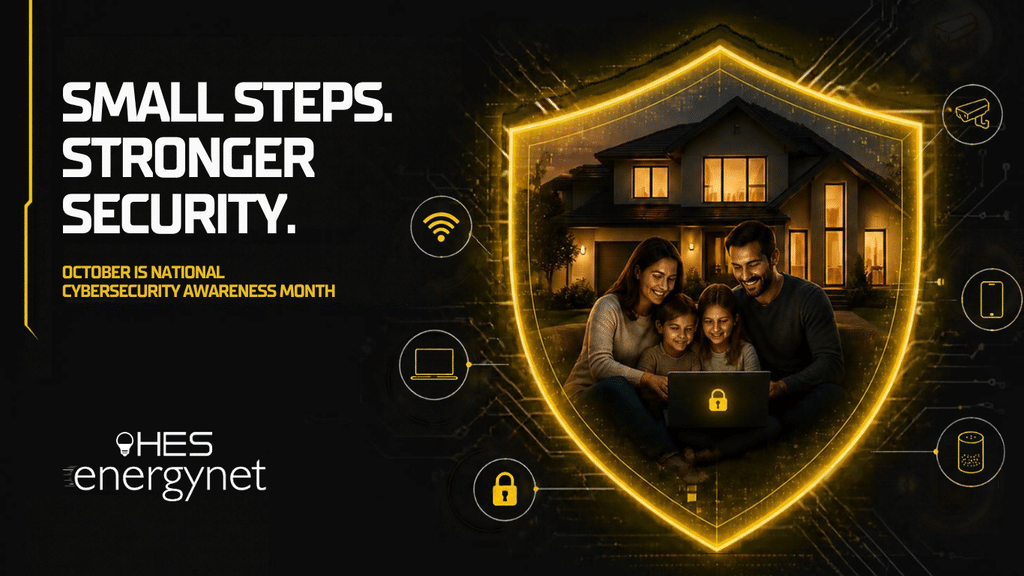
    Cybersecurity awareness month. family being protected from cybersecurity by HES EnergyNet's ProtectIQ

    October is National Cybersecurity Awareness Month. It’s a yearly reminder that a few simple habits can protect your family’s personal information, your money, and your peace of mind. The good news? You don’t need to be a tech expert. Most of the protection comes from small steps anyone can take in an afternoon.

    Why Your Home Network Matters More Than Ever

    Think about everything connected in your home right now. Laptops and Chromebooks for school. Phones for every family member. Gaming consoles, smart TVs, tablets, video doorbells, and maybe a smart thermostat or speaker.

    Every one of those devices is a door into your home network. Most are perfectly safe, but each one needs to be locked. Scammers and hackers don’t usually target a specific family. They look for the easiest open door, like a default password, an outdated device, or someone who clicks a convincing fake link.

    The more devices and users in your home, the more important it is to have a plan. A fast, reliable fiber connection from EnergyNet gives your family room to stream, study, and game all at once. These tips help make sure that connection works for you and only you.

    Step 1: Lock Down Your Wi-Fi

    Your router is the front door to your digital home. A few quick changes make a big difference.

    • Change the default Wi-Fi password. Pick a long passphrase, like four or five random words strung together. Length beats complexity, and it’s easier to remember.
    • Change the router’s admin password, too. This is separate from your Wi-Fi password. It controls the router’s settings, and default admin logins are easy for strangers to look up.
    • Use WPA3 or WPA2 security. Check your router settings to confirm encryption is turned on. Avoid older options labeled WEP or “open.”
    • Keep your router updated. Firmware updates fix security holes. Many newer routers update on their own, but it’s worth checking.
    • Set up a guest network. Give visitors, babysitters, and even smart home gadgets their own network. That keeps them separate from the computers where you bank, shop, and do schoolwork.
    • Rename your network wisely. Skip your last name or street address in the Wi-Fi name. There’s no reason to advertise whose network it is.

    Not sure how to get into your router settings? That’s what local support is for. The EnergyNet team can walk you through it.

    Step 2: Strengthen Your Passwords (and Add a Second Lock)

    Weak or reused passwords are still one of the most common ways accounts get broken into. If one website suffers a data breach, criminals try that same email and password everywhere else.

    • Use a different password for every important account. Email, banking, and shopping accounts matter most. Your email is especially important because it’s used to reset everything else.
    • Try a password manager. It creates and remembers strong passwords for you, so you only need to remember one. Many are free or low-cost, and most work across phones and computers.
    • Turn on two-factor authentication (2FA). This sends a code to your phone or app when you log in. Even if someone steals your password, they can’t get in without that second step.
    • Consider passkeys. Many major sites now let you sign in with your fingerprint, face, or phone PIN instead of a password. Passkeys are hard to steal and can’t be phished.

    A good family project: sit down together and turn on 2FA for everyone’s email and gaming accounts. It takes about 15 minutes and protects you for years.

    Step 3: Learn to Spot a Scam

    The best firewall in your home is a family that knows what a scam looks like. Phishing messages arrive by email, text, phone call, and even social media. They’re designed to rush you into clicking, paying, or sharing information.

    Common warning signs:

    • Urgency or threats. “Your account will be closed today.” “Your power will be shut off in one hour.”
    • Unusual payment requests. Gift cards, wire transfers, cryptocurrency, or payment apps are red flags.
    • Links that don’t match. Hover over a link before clicking. If the web address looks odd or misspelled, don’t open it.
    • Requests for personal information. Passwords, Social Security numbers, and account PINs should never be shared by text or email.
    • Too good to be true. Free prizes, surprise refunds, and “you’ve won” messages are almost always fake.

    A special word about utility scams. Scammers sometimes pretend to be a local utility, including electric and internet providers. They may call claiming your bill is past due and demand immediate payment to avoid a disconnection. If you ever get a call, text, or email like this, don’t pay and don’t click. Hang up and contact Hopkinsville Electric System directly using the phone number on your bill or our official website. We’re always happy to confirm whether a message is really from us.

    Talk with your kids about this, too. Teach them to come to you before clicking a pop-up, downloading a “free” game add-on, or answering a message from someone they don’t know.

    Step 4: Protect Smart Devices and Kids’ Tech

    Smart home gadgets and kids’ devices are convenient, but they’re often the most overlooked part of home security.

    For smart home devices:

    • Change default passwords on cameras, doorbells, and smart plugs as soon as you set them up.
    • Turn on automatic updates in each device’s app.
    • Put these gadgets on your guest network when possible.
    • Unplug or remove devices you no longer use.

    For kids’ phones, tablets, and consoles:

    • Revisit the parental controls we covered in August. Make sure they’re still on after any device updates.
    • Require a parent’s approval for app and game downloads.
    • Set social media and gaming profiles to private, and review friend lists together.
    • Remind kids never to share their full name, school, address, or passwords online, even with “friends” in a game.

    The goal isn’t to scare kids away from technology. It’s to help them build smart habits they’ll carry for life.

    Your October Family Cybersecurity Checklist

    Pick a weekend this month and work through this list together. Check off each item as you go.

    • Change the Wi-Fi password and router admin password
    • Confirm WPA2 or WPA3 security is turned on
    • Check for router and device updates
    • Set up a guest network for visitors and smart devices
    • Turn on two-factor authentication for email, banking, and gaming accounts
    • Try a password manager or passkeys for key accounts
    • Change default passwords on smart home devices
    • Review parental controls and privacy settings on kids’ devices
    • Talk as a family about scam warning signs
    • Save HES’s official phone number in your contacts so you can verify any suspicious message

    Local Help When You Need It

    Staying safe online doesn’t have to be complicated. A strong connection and a few good habits go a long way, and you don’t have to figure it out alone.

    As your hometown provider, Hopkinsville Electric System and EnergyNet are here for more than just power and internet. If you have questions about your router, your Wi-Fi settings, or a message that doesn’t look right, give our local team a call. We’re your neighbors, and we’re glad to help.

    Brandon Tubbs

    October 19, 2026
    News
    christian county, cyber security, cyber tips, energynet, fast, fiber, fiber internet, hopkinsville, internet, streaming
1 2 3 … 60
Next Page

Electric

  • Start Service
  • Stop Service
  • Transfer Service
  • Pay as You Go Program
  • Energy Efficiency
  • New Construction
  • Landlord Requests
  • Your Rate Explained
  • Security Lights

Internet

  • Home Internet
  • Business Internet
  • Lifeline
  • Landlord Release

Phone

  • Home Phone
  • Business Phone

Company

  • Contact
  • About Us
  • Programs
  • Support
  • Account Logins
  • Hometown Grid
  • Legal

Sign up for…

Electric service
Internet service

Billing

Pay my Electric bill
Pay my Internet bill

Copyright 

2026

 Site design by Pivot.